jaMMMing Spotify Playlist App
jaMMMing is a performant web app that streamlines creating and working with Spotify playlists.
App Permissions And Cookie Policy
jaMMMing needs permissions from your Spotify account in order to modify your playlists and create new ones. We use cookies so that when you click the different links across the site everything works without us having to stop and ask you for your permissions over and over again. These cookies do not track you or your information and we do not store data about you. These cookies expire and delete themselves after an hour or when you click the Disconnect Spotify Account link at the top of the page when you are done using the site.
How To Use The App
Connect Your Spotify Account
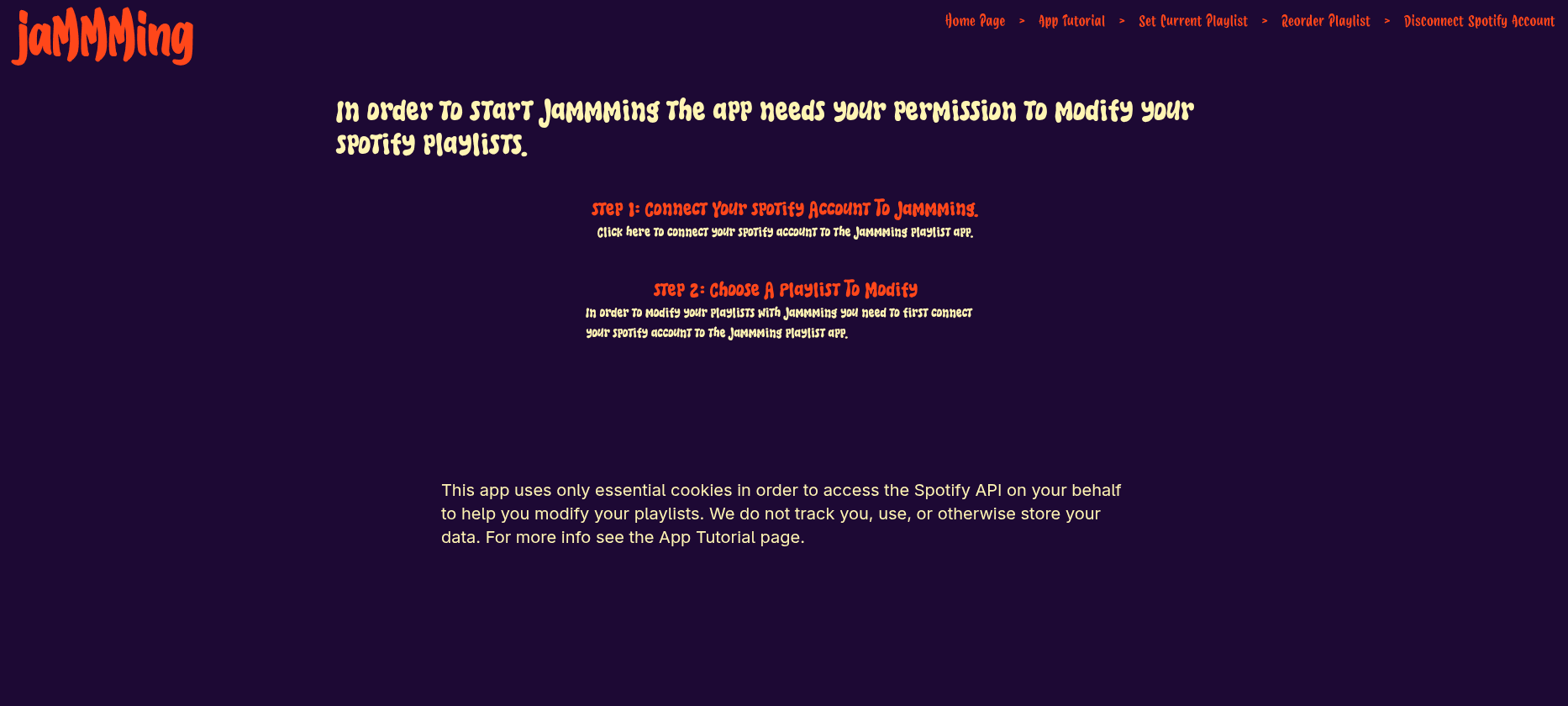
The first thing you need to do to start jaMMMing is to authenticate your Spotify account to use the app. This allows the app to use the Spotify API to create and modify playlists on your behalf. To do this just follow the instructions that appear on the screen when you first navigate to the home screen. Once you click the link there you will be taken to a Spotify authentication page asking you if you would like to give jaMMMing the permissions it needs. After this is done once authentication will be easier on subsequent visits.
Set The Current Playlist To Modify
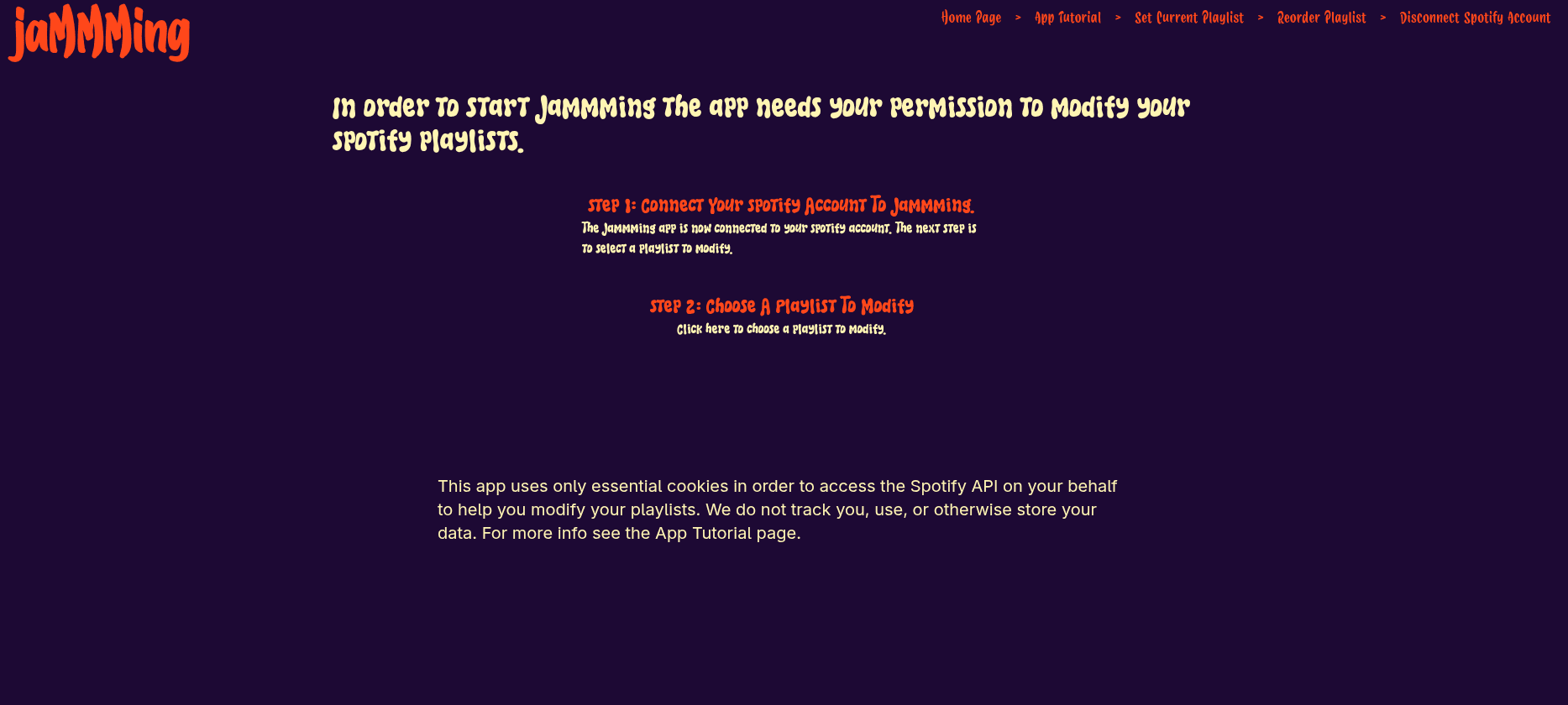
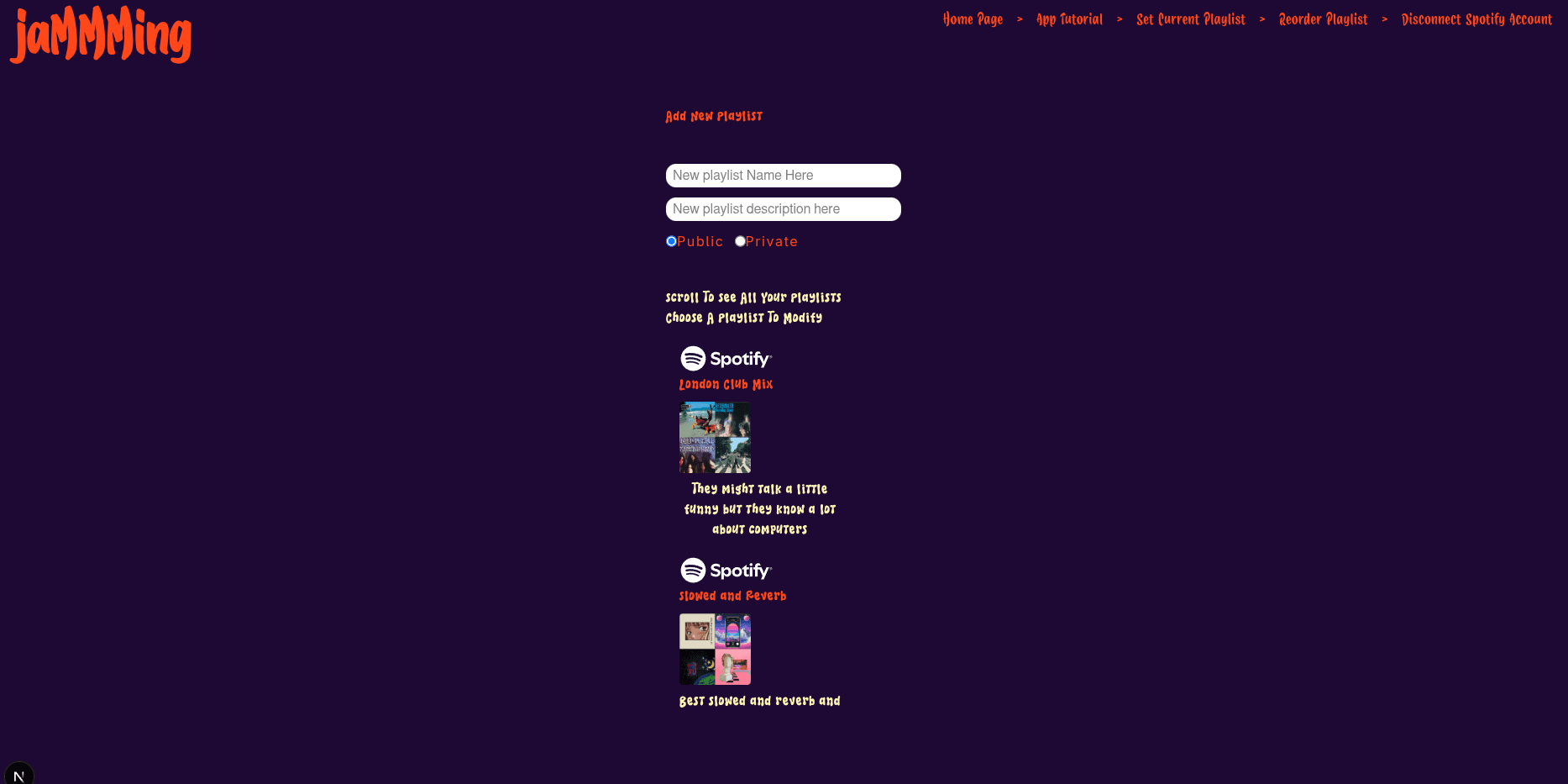
After jaMMMing is authenticated to your Spotify account the next step is to set the active playlist which can be done from the Set Current Playlist link at the top of the page or clicking the link from the instructions on the front of the home page. The current playlist can be selected or changed from the Set Current Playlist page. This determines which of your Spotify playlists gets modified when you add, remove, or reorder songs on your playlist.
This is also the screen you can use to create new playlists and unfollow playlists you are no longer interested in.
Music Search And Adding Or Removing Songs
After the app is authenticated and the current playlist is chosen navigating to the home page will be take you to the music search form instead of the initial instructions. You can navigate to the home page by clicking the Jamming logo at the top left of the page or the Home Page link in the navigation bar.
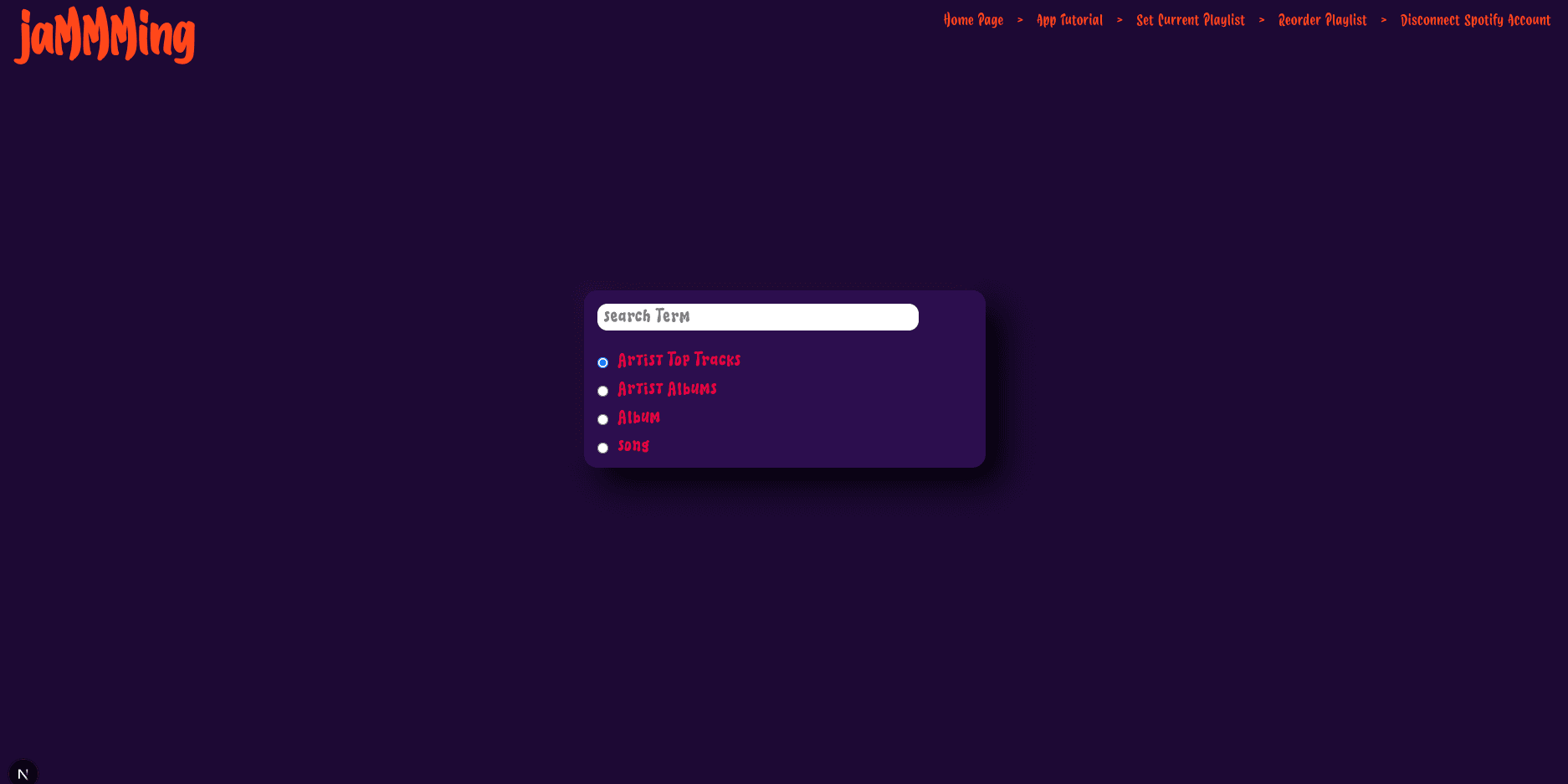
There are four search criteria. Artist Top Tracks and Artist Albums lets you look up songs and albums by artist name. Album lets you look up albums by album name and Song lets you look up songs by song name.
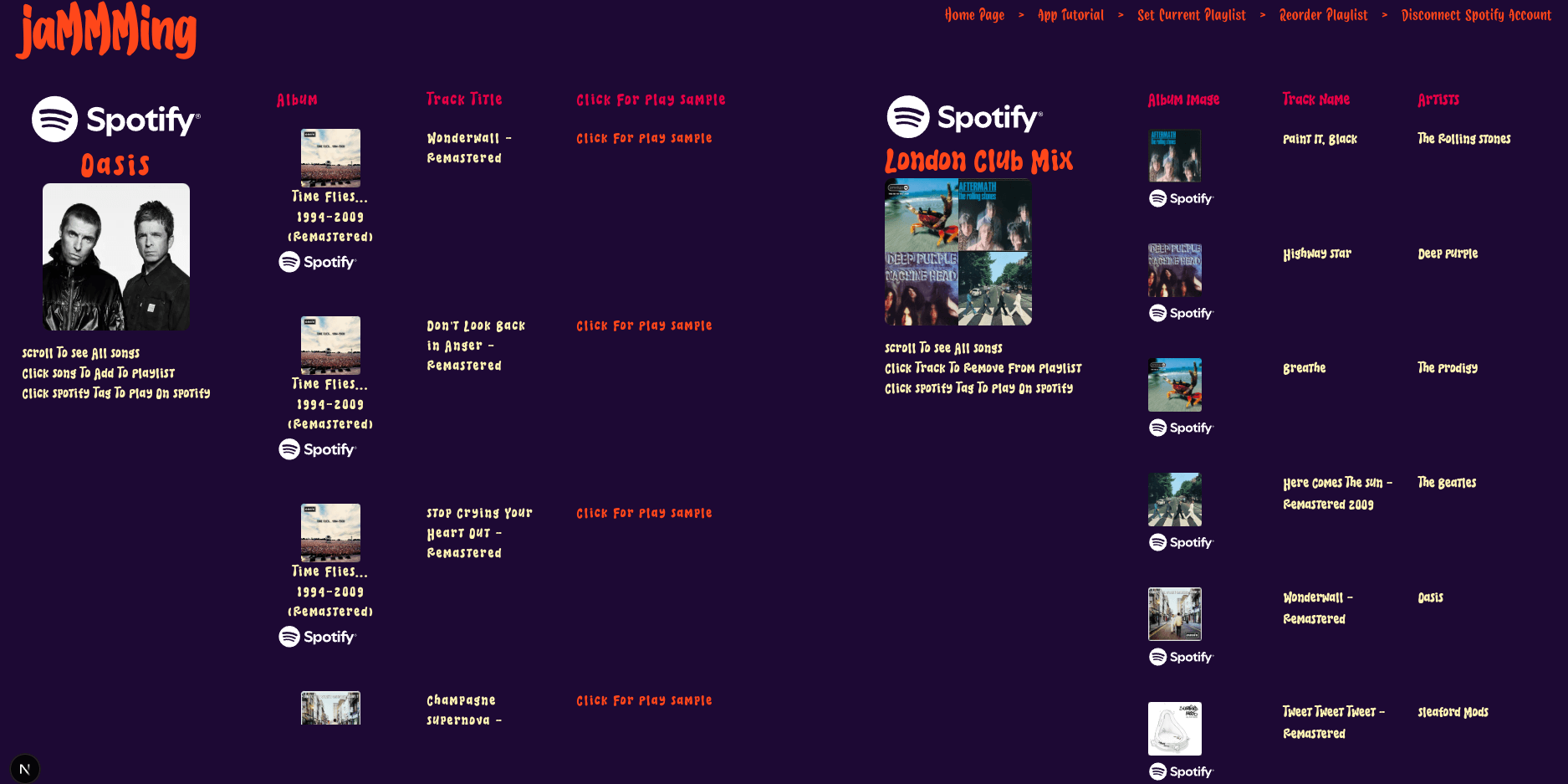
Clicking a song will add it to your playlist. Clicking an album will expand the album showing the songs in the album which allows you to click them to add them to your playlsit. Clicking the Click for Play Sample button will bring up a few second sample of the song for you to listen to.
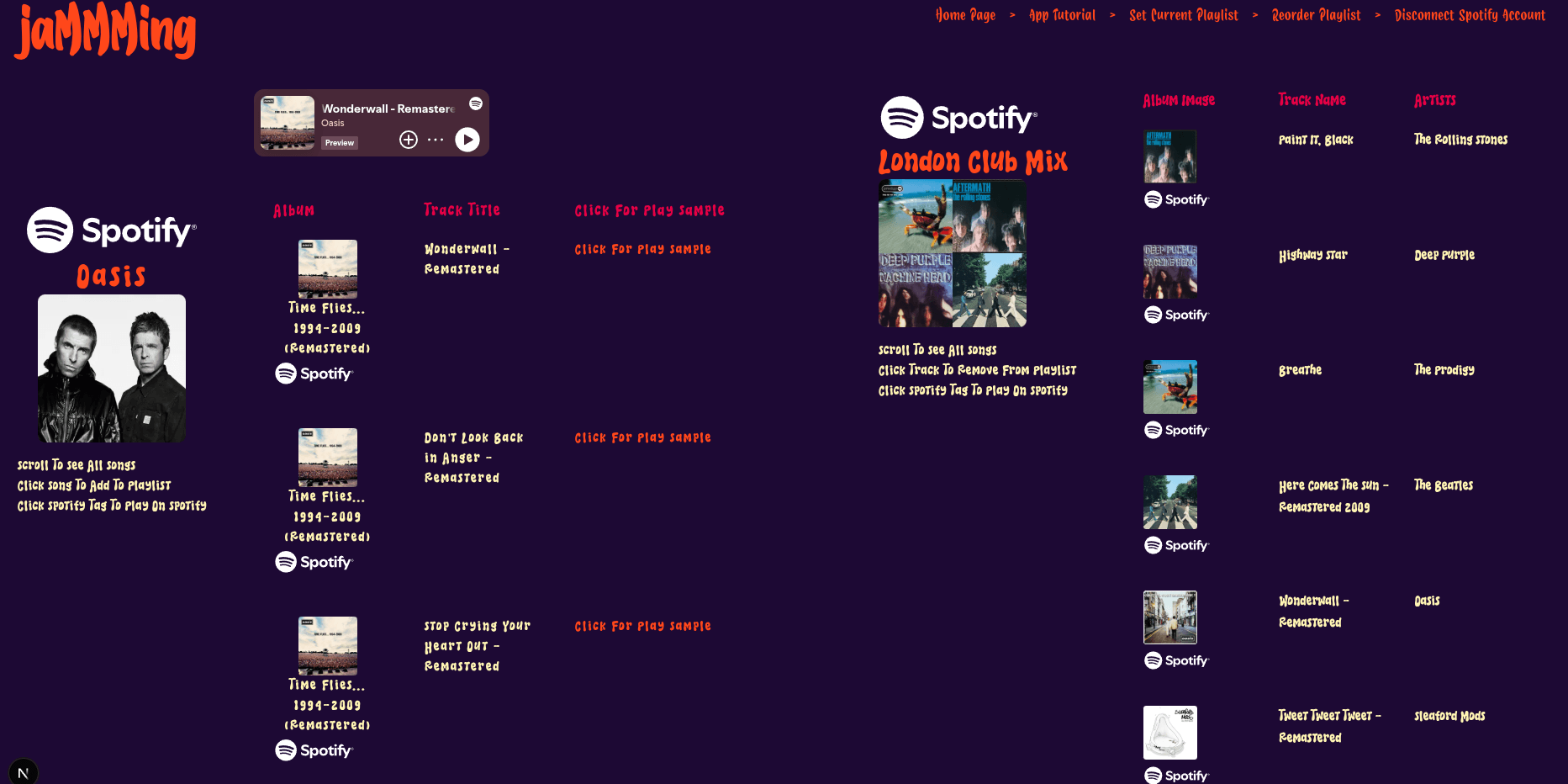
On the album and artist album searches you can also add the entire album to your playlist with the add album to playlist button.
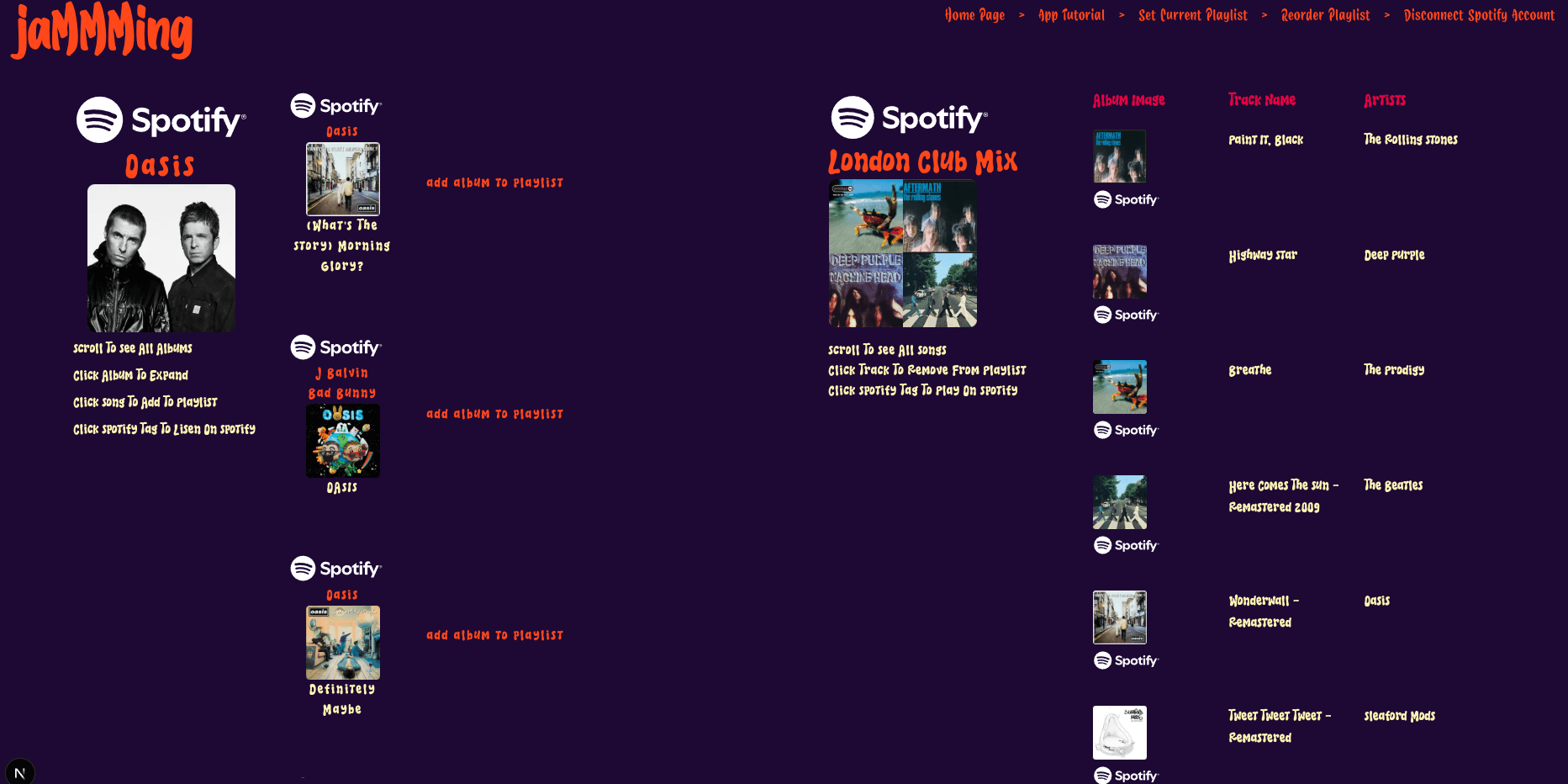
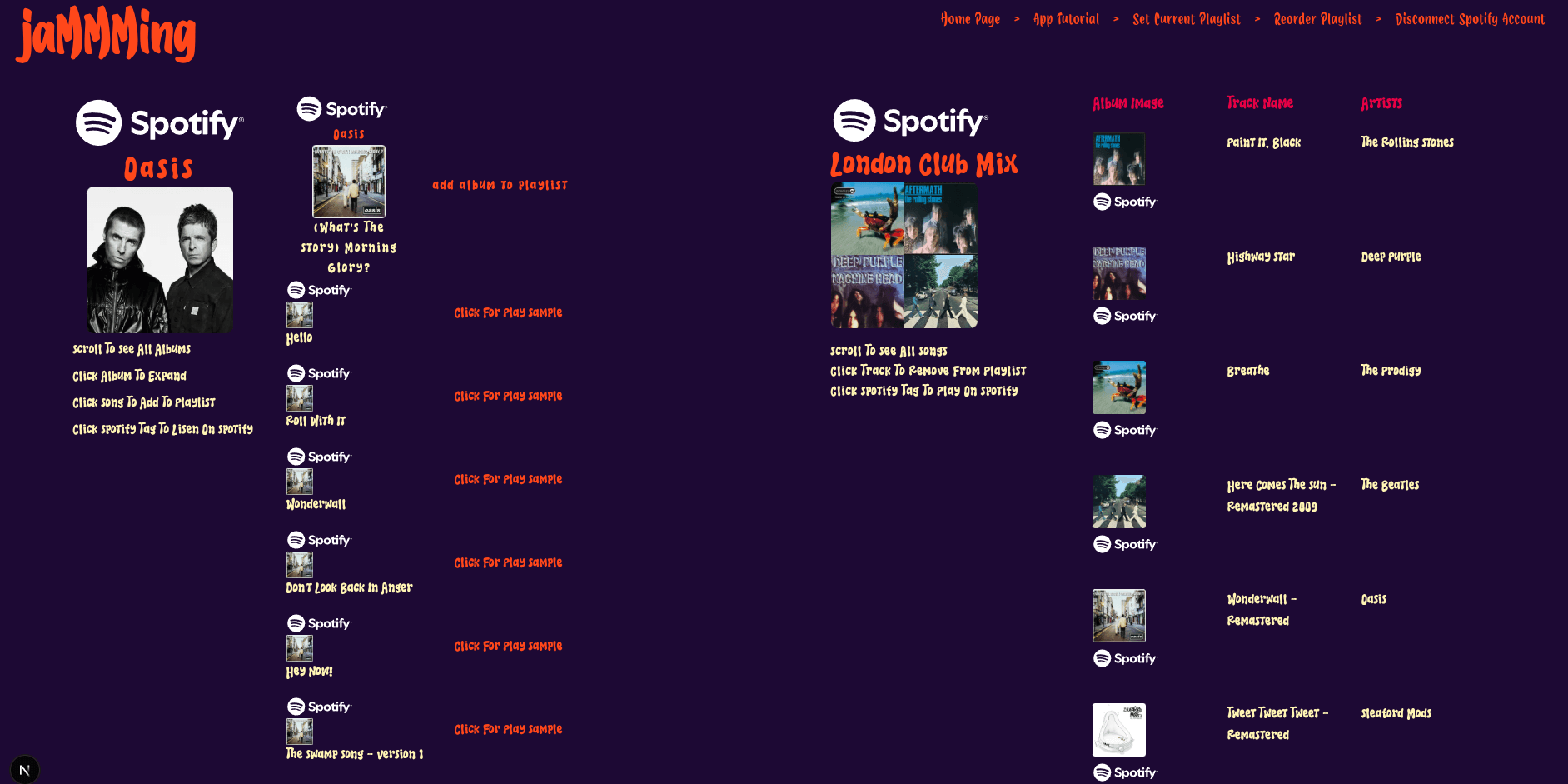
Songs will always be added to the bottom of your playlist and clicking a song from your playlist will remove the song from it.
Reordering And Renaming Playlists
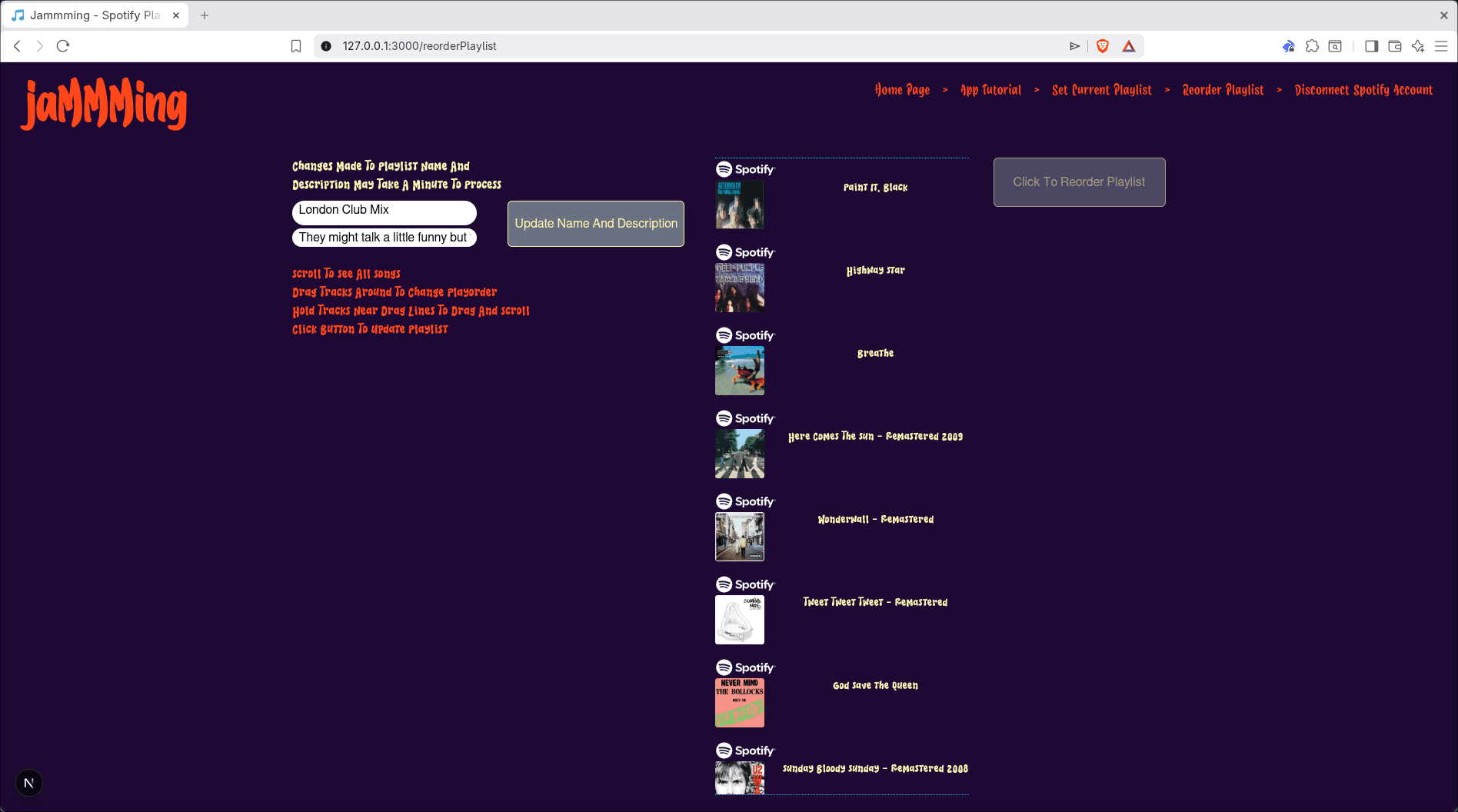
Once you add all the songs you want to your playlist you will probably want to set the perfect playorder for your playlist. Simply go to the Reorder Playlist page and you can grab any song from your playlist and drag it around to change the playlist order. Once you drag all the songs where you want them on your playlist click the Click To Reorder Playlist button to actually make the changes to your playlist. This is also the screen that allows you to change the name and description of your playlist.